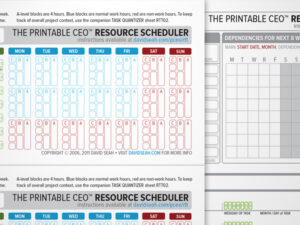
A long time ago, I offhandedly wrote that I used to make Gantt Charts in Excel to help visualize project flow. I’ve never uploaded these files because I didn’t think they were that exciting. I’m basically just using Excel like graph paper, and there is absolutely no automatic calculation at all. On the other hand, it’s probably a lot EASIER to keep up to date, through copying/pasting and inline annotation, than actual software like Microsoft Project.
Note: Lines 5-6 are the days of the month, stacked vertically. The graphic above shows the first day as Monday, July 27.
Please note: this is not a real project management application, because it’s not capable of recalculating resource usage and shifting schedules. If you need to monitor a real project with shifting deadlines, you probably want to look at real project management software for your industry. What this Excel Gantt chart is good for is sketching your thoughts out. Think of it as a piece of graph paper that you can doodle on, and figure out all the tasks, dependencies, resources, and deadlines you need in a familiar tool. You’ll need to do that anyway if you are going to use project management software, which can be really awful with on-the-fly schedule making.
This version of my Excel Gantt chart will calculate the shading for you automatically and mark the months based on the input of a starting date. This version is also set up to print gridlines, which makes it useful for printing out “gantt paper” to sketch on.
Download
The current version to download is dseah-gantt-excel-v4.zip. It requires Excel 2007 or higher. If you are using an earlier version of Excel, try downloading version 2.
The download will contain two files:
- The
Sample Gantt Daily.xlsxfile, for daily planning - The
Sample Gantt Weekly.xlsxfile, for weekly planning
Instructions
There are instructions on its use on the first worksheet. There is an example worksheet included; check the document tabs at the bottom. If you are using a non-English version of Excel, please read the instructions on the Date Formatting Strings worksheet to fix the date formatting for your locale.
If you’re not that familiar with Excel, you can watch this video, which describes how to change the date ranges and goes through the process of creating a chart from scratch.
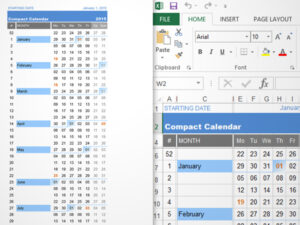
If you are doing rough scheduling at a meeting, you can use the Compact Calendar, which is helpful for visualizing future time as one resource block. Unlike a Gantt chart, however, it does not show dependencies between multiple project sub-tasks.
Enjoy!


Hi David,
Thank you for replying. I think I was having a bit of a ‘duh’ moment, as I can see that the date uses rows 5 and 6 – vertically! I really didn’t see this before!
Thanks again :o)
Hi,
Thanks for sharing this. Regarding the video, what application did you use to capture your computer screen? I really like how you utilized the zoom to focus on key areas of the screen.
Cheers,
C
Hey David,
Used this gantt chart for an assignment, and it was so easy and great to use. I’m using it again on another assignment, but I need to block the dates into week 1, week 2 etc rather than single days. Can you offer any help? I’m a dunce at excel, so that doesn’t help. I’ll try and work it out, but if there’s an easy solution, that’ll be great if you can help?
Thanks again for the template,
c
Dave, Same as Cathy on 15 May, I’m trying to figure out how to manipulate your .xls file to display weeks instead of days. Help with this please? Many thanks for this great template! Joshua
Carlos: Thanks! I’m using Camtasia Studio 7 on Windows to do the screen capture and zooming. It’s a pretty decent package, though a little pricey.
Cathy, Joshua: I’ll see what I can do; I did something similar recently for another spreadsheet.
Ok, I just updated the post with the new downloadable Weekly version. Check at the very bottom of the page! Feel free to leave a donation if it’s helped you out :)
Pingback: Project Management Hotties | E-Chieve Your E-commerce Project Targets
Hi Dave, Love this straightforward and simple Gantt Chart. Need help figuring out how to extend the columns though. Been trying to figure out how to but for the life of me I wanna bang my head against the wall in frustration! LOL. Help? Thank you so much!
Thelma: Glad you like it! Watch the video; it shows you how to extend the columns.
Pingback: Free Gantt Chart Templates | Smartlife
Awesome spreadsheet.
I would find it really handy if there was a 2 year version.
Will play with your formulas and see what I can do.
The automatic dates are nice!
:-)
Watch the video! It will show you how to extend the range to whatever you want :)
Hi David, great great gantt but please help me with row 5 and 6 – what are the numbers? Can I get them to show dates? Thanks so much
AK Helmer: Lines 5-6 are the date, stacked vertically. First day in the graphic is Monday the 27th. You’re not the only person who’s asked, so I’ve added this tip to the article as well to help!
Thank you so much Dave, you’re a star! AK
This looks great! However, whenever I try to change the date the numbers don’t update and I just get rows and rows of ‘d’s…anyone know why this is and how to solve it? Thank you!
Elaine: I have heard of a similar case with a different spreadsheet (the compact calendar) when the user was using a Turkish version of Windows. There was something about that particular version of Excel that didn’t calculate the text functions correctly. I haven’t heard of this for the Gantt chart, though. Tell me what version of Excel and Windows you’re using, and if you are using anything different from the English settings on Windows.
Wow…quick response! I’m using Windows XP and Excel 2007 – the ‘Turkish’ aspect is interesting since I live in Italy at the moment so some of the software is configured to be Italian language (although the drop downs, etc. in Excel display in English, the date displays in Italian language).
Love all your productivity stuff btw! I was looking for a ‘visual’ diary that showed my deadlines kind of like a ‘BeeDocs’ timeline – your Excel sheet looks perfect.
Hi, David.
I have a same problem. Mac OS 10.6.8 Format region – Russia Microsoft Office for Mac 2011 v.14.1.2
When I change format region to United States. Everything is working.
Could you please advice? I wanna use your great product with Russia region. Thanks!
I’ve just uploaded v4, which I think will fix the problem!
Please provide a monthly version too.
Thanks
Anil
Hi Dave,
I love this tool! I started using the weekly version to track HR projects. I am having trouble adding columns to the right. I tried the method in your video (highlighting the whole column and dragging the plus sign to the right) and it just copies over the same dates. I am using Excel 2007. Any ideas?
Thanks!
Missy:
Yay! Glad you like it! I’m using Excel 2007 as well, and it’s working for me, so I suspect you didn’t highlight the entire column. Try clicking the column label (it is column “BE” on my sheet), which will highlight the entire column at once. If you are dragging a selection, you may have missed the blank cell above (there is actually an invisible date in there).
Let me know if it works. Good luck!
Thank you. I got it to work. For some reason, I had the spreadsheet set to manually calculate so once I fixed that, it worked. Thanks again!